Imagine losing all your business data in an instant. Scary, right? With Azure Backup, that nightmare becomes a distant worry. This powerful cloud solution safeguards your data with military-grade resilience and seamless automation—making data recovery effortless, reliable, and smart.
What Is Azure Backup and Why It Matters

Microsoft Azure Backup is a comprehensive cloud-based data protection service designed to secure your on-premises, hybrid, and cloud workloads. It eliminates the complexity of traditional backup systems by offering automated, scalable, and secure backup solutions that integrate seamlessly with your existing IT infrastructure. Whether you’re protecting virtual machines, databases, or file servers, Azure Backup ensures your data is always recoverable—no matter the disaster.




Core Components of Azure Backup
Azure Backup isn’t a single tool but a suite of interconnected services that work together to deliver robust data protection. At its heart lies the Recovery Services vault, a secure container in Azure that stores backup data and manages recovery operations. This vault acts as the central hub for all backup policies, schedules, and retention settings.
- Recovery Services Vault: The storage entity where backed-up data is stored and managed.
- Backup Policies: Define how often backups occur and how long they’re retained.
- Backup Agents: Software components like the Microsoft Azure Recovery Services (MARS) agent used for on-premises systems.
Another key component is the Azure Backup Server (formerly Data Protection Manager), which allows organizations to back up large-scale enterprise environments, including applications like SharePoint and Exchange. For virtual machines, Azure VM Backup provides snapshot-based protection directly from the Azure portal, eliminating the need for additional agents in many cases.
How Azure Backup Differs from Traditional Backup Methods
Traditional backup solutions often rely on physical tapes, on-site storage, and manual intervention. These methods are not only time-consuming but also prone to human error and physical damage. Azure Backup, on the other hand, leverages the scalability and reliability of the cloud to automate backups and reduce operational overhead.
Unlike legacy systems, Azure Backup offers geo-redundant storage options, meaning your data is replicated across multiple data centers hundreds of miles apart. This ensures protection against regional outages or natural disasters. Additionally, Azure Backup integrates with Azure Monitor and Azure Security Center, providing real-time insights and threat detection capabilities that traditional systems simply can’t match.
“Azure Backup transforms data protection from a reactive chore into a proactive strategy.” — Microsoft Azure Documentation
Azure Backup for Virtual Machines: A Game Changer
One of the most widely used features of Azure Backup is its ability to protect Azure Virtual Machines (VMs). This functionality is critical for businesses running mission-critical applications in the cloud. With just a few clicks, you can enable backup for any VM, and Azure handles the rest—automatically creating snapshots and storing them securely in a Recovery Services vault.
How VM Backup Works in Azure
When you enable Azure Backup for a VM, the process begins with taking an application-consistent snapshot. This means that even if the VM is actively processing transactions, the backup captures a stable state of the system, ensuring data integrity. The initial backup is a full copy, followed by incremental backups that only store changes since the last backup—saving time and bandwidth.
These snapshots are stored in the Recovery Services vault and can be retained for years, depending on your policy. You can restore an entire VM, specific disks, or even individual files from a backup point. The restore process is intuitive and can be completed through the Azure portal, PowerShell, or Azure CLI.
- Application-consistent backups ensure data integrity during live operations.
- Incremental backups minimize storage costs and network usage.
- Flexible restore options allow recovery at VM, disk, or file level.
Benefits of Using Azure Backup for VMs
The advantages of using Azure Backup for virtual machines go beyond convenience. First, it offers near-zero RTO (Recovery Time Objective) and RPO (Recovery Point Objective), meaning your systems can be restored quickly with minimal data loss. Second, it supports encryption both in transit and at rest, meeting compliance requirements for industries like healthcare and finance.
Additionally, Azure Backup integrates with Azure Site Recovery for disaster recovery scenarios, allowing you to failover VMs to another region during outages. This dual-layer protection—backup for data retention and Site Recovery for business continuity—makes Azure a leader in cloud resilience.
According to Microsoft, organizations using Azure Backup for VMs report up to 60% reduction in recovery time compared to traditional methods. This efficiency translates into real cost savings and improved operational agility.
Protecting On-Premises Data with Azure Backup
Not all data lives in the cloud. Many enterprises still rely on on-premises servers for critical applications and legacy systems. Azure Backup bridges the gap between on-prem and cloud with seamless hybrid backup capabilities. Using the MARS agent or Azure Backup Server, you can back up files, folders, and applications directly to Azure—without needing to migrate your entire infrastructure.
Using the MARS Agent for File and Folder Backup
The Microsoft Azure Recovery Services (MARS) agent is a lightweight tool that installs on Windows servers or desktops. Once configured, it allows you to schedule regular backups of files and folders to a Recovery Services vault in Azure. The agent uses block-level differencing to optimize performance, sending only changed data during incremental backups.
One of the standout features of the MARS agent is its support for application-aware backups. For example, when backing up SQL Server databases, the agent ensures transaction logs are flushed and the database is in a consistent state before capturing the backup. This prevents corruption and ensures reliable restores.
- Supports Windows Server and Windows 10/11 clients.
- Encrypts data before transmission using 256-bit AES encryption.
- Allows bandwidth throttling to avoid network congestion during business hours.
For organizations with strict compliance needs, the MARS agent supports customer-managed keys (CMK) for encryption, giving you full control over who can access your backup data.
Azure Backup Server for Enterprise Workloads
For larger environments, Azure Backup Server (ABS) offers a more robust solution. ABS extends the capabilities of the older Data Protection Manager (DPM) by adding native cloud integration. It can protect a wide range of workloads, including Hyper-V and VMware VMs, SQL Server, SharePoint, and Exchange.
ABS acts as an on-premises backup hub that aggregates data from multiple sources and then sends it to Azure. This approach reduces the number of direct connections to the cloud, improving efficiency and security. ABS also supports long-term retention policies, allowing you to keep backups for years for audit or compliance purposes.
A key benefit of ABS is its ability to perform local restores at high speed while still maintaining cloud durability. If a server fails, you can restore data from the local ABS cache in minutes, then rehydrate from Azure if needed. This hybrid restore model balances speed and resilience perfectly.
Hybrid Cloud Backup Strategies with Azure Backup
In today’s IT landscape, hybrid cloud environments are the norm rather than the exception. Organizations use a mix of on-premises infrastructure, private clouds, and public cloud services. Azure Backup is uniquely positioned to support this complexity with unified backup management across all environments.
Unified Management Across On-Prem and Cloud
Azure Backup provides a single pane of glass for managing backups, regardless of where the data resides. Through the Azure portal, administrators can view backup health, configure policies, and initiate restores for both cloud and on-premises systems. This centralized control reduces administrative overhead and improves visibility.
For example, a company might use Azure Backup to protect its on-premises SQL Server databases, Azure VMs running web applications, and even file shares in a branch office. All of these can be monitored and managed from one dashboard, with alerts and reports generated automatically.
- Single dashboard for monitoring all backup jobs.
- Consistent backup policies across hybrid environments.
- Automated alerts for failed backups or policy violations.
Bandwidth Optimization and Cost Control
One common concern with hybrid backup is bandwidth usage. Azure Backup addresses this with several optimization techniques. First, it uses compression and deduplication to reduce the amount of data sent over the network. Second, it supports scheduling backups during off-peak hours to avoid impacting business operations.
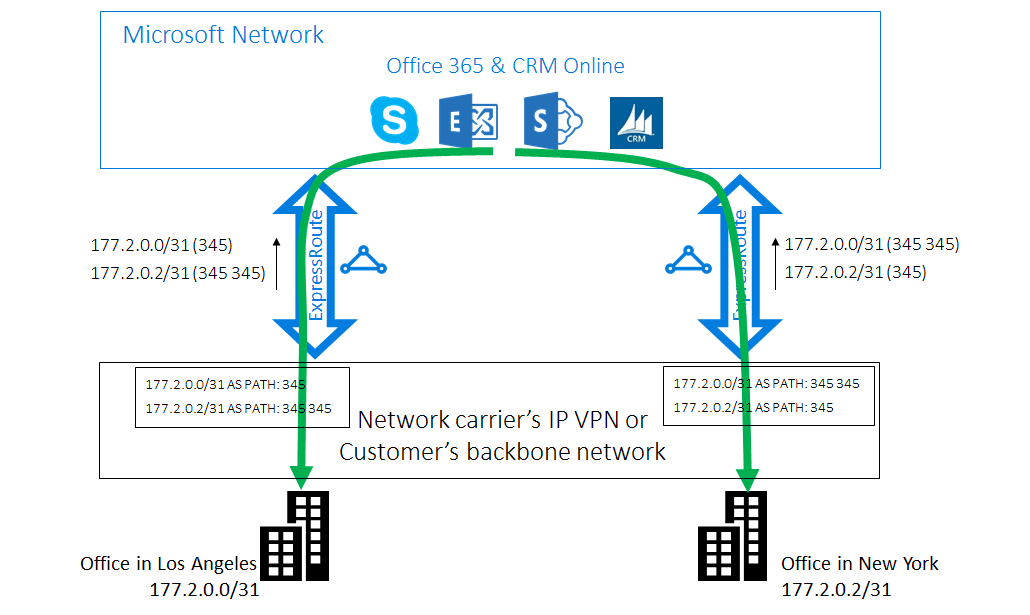
Additionally, Azure offers ExpressRoute, a private connection between on-premises networks and Azure, which can be used to transfer large volumes of backup data securely and efficiently. For cost-sensitive organizations, Azure Backup also provides tiered storage options, such as the Backup vault with Archive tier, which stores infrequently accessed data at a lower cost.
By combining these features, Azure Backup enables organizations to implement cost-effective, high-performance backup strategies without sacrificing reliability.
Security and Compliance in Azure Backup
Data security is non-negotiable. Azure Backup is built with multiple layers of protection to ensure your data remains confidential, intact, and available. From encryption to access controls, every aspect of the service is designed with security in mind.
Encryption: In Transit and At Rest
All data backed up to Azure is encrypted during transmission using TLS 1.2 or higher. Once stored in the Recovery Services vault, it’s encrypted at rest using either Microsoft-managed keys or customer-managed keys (CMK). CMK gives organizations full control over the encryption keys, allowing them to rotate, revoke, or audit access as needed.
This level of encryption meets stringent compliance standards such as GDPR, HIPAA, and ISO 27001. For regulated industries, this means Azure Backup can be part of a compliant data protection strategy without requiring additional tools.
- TLS encryption for data in transit.
- 256-bit AES encryption for data at rest.
- Support for Azure Key Vault integration for CMK.
Role-Based Access Control (RBAC) and Monitoring
Azure Backup integrates with Azure’s Role-Based Access Control (RBAC) system, allowing administrators to define who can create, modify, or delete backup policies and recovery points. This prevents unauthorized changes and ensures accountability.
For example, you can assign the ‘Backup Operator’ role to a user, allowing them to manage backups but not delete recovery points. Meanwhile, the ‘Backup Reader’ role lets users view backup status without making changes. These granular permissions enhance security and align with the principle of least privilege.
Additionally, Azure Monitor and Azure Log Analytics can be used to track backup activities, detect anomalies, and generate compliance reports. This proactive monitoring helps identify potential issues before they become critical.
Cost Management and Pricing Models for Azure Backup
Understanding the cost structure of Azure Backup is essential for budgeting and optimization. Unlike traditional backup solutions that require upfront hardware and licensing costs, Azure Backup operates on a pay-as-you-go model, making it more predictable and scalable.
How Azure Backup Pricing Works
Azure Backup pricing is based on the amount of data stored in the Recovery Services vault and the type of workload being protected. For example, backing up an Azure VM is priced per instance, while file and folder backups are charged based on the amount of protected data.
There are two main pricing tiers: the standard tier for frequent access and the archive tier for long-term retention. The archive tier offers significantly lower storage costs but has higher retrieval fees and longer access times, making it ideal for compliance or legal data that rarely needs to be restored.
- Pricing based on protected instance or data size.
- Two storage tiers: Standard and Archive.
- No upfront costs or long-term commitments.
You can use the Azure Pricing Calculator to estimate your monthly costs based on your environment. This tool helps you compare different configurations and choose the most cost-effective option.
Strategies to Optimize Backup Costs
To keep costs under control, organizations should adopt smart backup practices. First, define retention policies that align with business needs—don’t keep daily backups for five years if monthly backups suffice. Second, use the archive tier for data that won’t be accessed frequently.
Third, enable soft delete to prevent accidental deletion of recovery points, which could lead to data loss and costly recovery efforts. Finally, monitor backup jobs regularly to identify and fix failures early, avoiding unnecessary retries and data retransmission.
Microsoft also offers reserved capacity discounts for organizations with predictable backup needs. By committing to a certain level of usage for one or three years, you can save up to 30% on backup costs.
Best Practices for Implementing Azure Backup
Deploying Azure Backup successfully requires more than just enabling a few settings. It demands careful planning, testing, and ongoing management. Following best practices ensures your backup strategy is effective, efficient, and resilient.
Define Clear Backup and Recovery Objectives
Before implementing Azure Backup, define your Recovery Time Objective (RTO) and Recovery Point Objective (RPO). RTO is how quickly you need to restore systems after a failure, while RPO is the maximum acceptable amount of data loss measured in time.
For example, a financial application might require an RPO of 15 minutes and an RTO of 30 minutes. This would necessitate frequent backups and fast restore capabilities. In contrast, a static website might tolerate an RPO of 24 hours, allowing for less frequent backups and lower costs.
Aligning your Azure Backup policies with these objectives ensures you’re not over- or under-protecting your data.
Test Your Recovery Process Regularly
Many organizations assume their backups are working—until they need to restore data and discover the backups are corrupt or incomplete. To avoid this, conduct regular recovery drills. Test restoring entire VMs, databases, and individual files to verify the process works as expected.
Azure provides a sandbox environment for testing restores without affecting production systems. Use this to simulate disaster scenarios and train your team on recovery procedures.
- Schedule quarterly recovery tests for critical systems.
- Document and update recovery runbooks regularly.
- Involve IT and business stakeholders in recovery planning.
Monitor and Maintain Your Backup Environment
Azure Backup should not be “set and forget.” Regular monitoring ensures backup jobs complete successfully and alerts you to potential issues. Use Azure Monitor to create dashboards and set up alerts for failed backups, low storage, or policy violations.
Additionally, review and update your backup policies periodically. As your business grows, your data protection needs will evolve. What worked for 10 VMs may not scale to 100. Proactive maintenance keeps your backup strategy aligned with your business goals.
Microsoft’s official documentation at Azure Backup Documentation provides detailed guidance on best practices, troubleshooting, and advanced configurations.
Future Trends and Innovations in Azure Backup
Azure Backup is not static—it evolves with emerging technologies and customer needs. Microsoft continuously enhances the service with new features, deeper integrations, and AI-driven automation.
AI-Powered Backup and Recovery
One of the most exciting developments is the integration of artificial intelligence into backup operations. Azure is exploring AI models that can predict backup failures, optimize retention policies, and even suggest recovery actions based on historical patterns.
For example, an AI system might detect that a particular server consistently fails backups at 2 AM due to high CPU usage and automatically reschedule the job to a less busy time. This proactive intelligence reduces manual intervention and improves reliability.
Enhanced Integration with Azure Arc
Azure Arc extends Azure management to servers and Kubernetes clusters running anywhere—on-premises, at the edge, or in other clouds. With Azure Arc, you can apply Azure Backup policies to non-Azure resources as if they were native Azure services.
This unified management plane simplifies backup operations across multi-cloud environments and enables consistent governance. As more organizations adopt hybrid and multi-cloud strategies, Azure Arc and Azure Backup will become indispensable tools for data protection.
What is Azure Backup?
Azure Backup is a cloud-based service from Microsoft that provides automated, secure, and scalable data protection for on-premises, hybrid, and cloud workloads. It supports virtual machines, databases, files, and enterprise applications, ensuring data can be recovered quickly after loss or corruption.
How much does Azure Backup cost?
Costs depend on the type of workload and amount of data stored. Azure Backup uses a pay-as-you-go model with no upfront fees. You can estimate costs using the Azure Pricing Calculator, and savings are available through reserved capacity or the Archive tier for long-term retention.
Can I back up on-premises servers to Azure?
Yes. You can use the Microsoft Azure Recovery Services (MARS) agent or Azure Backup Server to back up on-premises files, folders, and applications like SQL Server and Exchange directly to Azure. Data is encrypted and transmitted securely over the internet or ExpressRoute.
Is my data encrypted in Azure Backup?
Yes. All data is encrypted in transit using TLS and at rest using 256-bit AES encryption. You can use Microsoft-managed keys or bring your own keys (BYOK) via Azure Key Vault for greater control.
How do I restore data from Azure Backup?
Restoration can be done through the Azure portal, PowerShell, or CLI. You can restore entire VMs, disks, or individual files from any recovery point. The process is intuitive and supports both quick local restores and full cloud rehydration.
Microsoft Azure Backup is more than just a safety net—it’s a strategic asset for modern businesses. From protecting virtual machines to securing on-premises databases, its flexibility, security, and cost-efficiency make it a top choice for organizations worldwide. By leveraging automation, encryption, and hybrid capabilities, Azure Backup ensures your data is always protected, compliant, and ready for recovery. As cloud adoption grows, so does the importance of a reliable backup strategy—and Azure Backup is leading the way.
Recommended for you 👇
Further Reading: